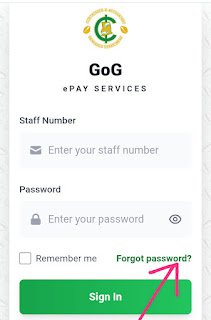
How to reset forgotten password on ePaySlip
It is frustrating to have forgotten password on epayslip. Accessing your ePayslip account is essential for checking and managing your salary information, especially when you need quick access to your payslip records for personal or official purposes.
However, forgetting your login password is a common situation that can prevent users from signing in. Fortunately, the ePayslip portal provides a secure and simple password recovery process that allows users to regain access without difficulty.
Follow the steps below carefully to reset your password.
1. To begin the process, you must first access the official login platform.
2. Visit the official ePayslip portal: gogepayservices.com
3. To initiate the password recovery process, locate the reset option on the login page.
4. On the login page, click “FORGOT PASSWORD.”
5. To verify your identity, the system will require some basic personal details.
6. Enter your:
▪ employee number / staff id
▪Registered mobile number or email address
▪ Any verification code (captcha) shown on the page
7. To proceed with the recovery request, submit the details you have entered.
Click SUBMIT or CONTINUE.
8. To confirm your identity and allow the reset process to continue, the system will send a recovery code or link.
9. The system will send:
▪ An OTP code, reset link, or temporary password to your registered phone number or email
10. To complete verification, you must respond to the code or link sent.
It is very important to ENTER OTP when it is received, or follow the reset link provided, as this step confirms your identity and allows the reset process to continue.
11. To secure your account, you will be required to set a new login credential.
Create a NEW PASSWORD and confirm it. Your NEW PASSWORD should usually contain:
▪ Letters
▪ Numbers
▪ Special characters
12. To access your account again, return to the login page and sign in using your updated details.
13. Go back to the login page and sign in with your NEW PASSWORD.
Conclusion:
If you experience any difficulty or cannot receive the reset message, further support is available.
If your registered phone number has changed or you do not receive the OTP/message, contact the payroll help desk or your HR office for assistance.