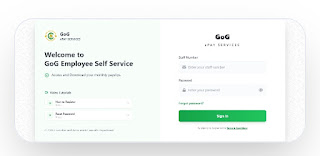
How to change profile picture or upload it on the new payslip portal
Management has instructed all staff whose passport photographs are missing from the newly generated payslips to update their profile pictures on the payslip portal without delay. Staff who wish to change profile picture too can do so. Staff are encouraged to complete the update before the system is closed to avoid any challenges with their records and payslips. Management also stressed that all uploaded photographs must have a white background to meet the approved requirements.
Refreshing your profile image on the payslip system helps keep your account information accurate and presents a professional appearance whenever you log in. The process is simple and only requires a few guided steps.
Open the website here: https://gogepayservices.com
Steps to change picture
Step 1: Log Into Your Account
To begin the process, you first need to access your personal dashboard by signing into the payslip platform using your correct login details. This ensures you are working within your own account before making any changes.
▪ Visit the payslip platform and sign in with your username and password
▪ Wait for your dashboard to load completely before continuing
Step 2: Access Your Profile
After successfully logging in, the next step is to locate your profile section where all personal account details are stored. This area allows you to manage and update your information.
▪ Navigate to the top-right corner of the screen
▪ Click on the profile icon that displays the initials of your name (your name abbreviation)
▪ Select “View Profile” from the menu that appears
Step 3: Enter Editing Mode
Once inside your profile page, you need to activate the editing function so that changes can be made to your account details. This is where modifications to your profile become possible.
▪ Locate the edit (pencil) icon
▪ Click it to enable editing options for your profile information
Step 4: Upload Your Profile Picture
At this stage, you can replace your existing profile image with a new one of your choice. The system allows you to select and upload a photo directly from your device.
▪ Choose the option to upload or replace your profile image
▪ Select a clear photo from your device
▪ Upload it into the system
Important Requirement: White Background
For proper display and professionalism, the system expects your profile image to meet certain visual standards. This helps maintain consistency across accounts.
▪ Ensure the background is plain white
▪ The image should be clear and sharp
▪ Your face must be fully visible
▪ Avoid blur, shadows, or poor lighting conditions
Step 5: Save Changes
After uploading your new photo, you need to confirm and apply the changes so the system can update your profile successfully.
▪ Carefully review the image
▪ Click Save / Update to confirm the changes
Once saved, your new profile picture will immediately reflect on your account.
Summary
Here are the steps to change profile picture or upload it on the new payslip portal: Login → Profile menu → View profile → Edit → Upload image → Save